


Introduction: What Is a Dexcom G7 Receiver?
Managing diabetes can sometimes feel like a full-time responsibility. Checking glucose levels, understanding trends, remembering medications, and paying attention to alerts can become part of daily life. Technology like Continuous Glucose Monitoring (CGM) is designed to make this routine easier and more connected.
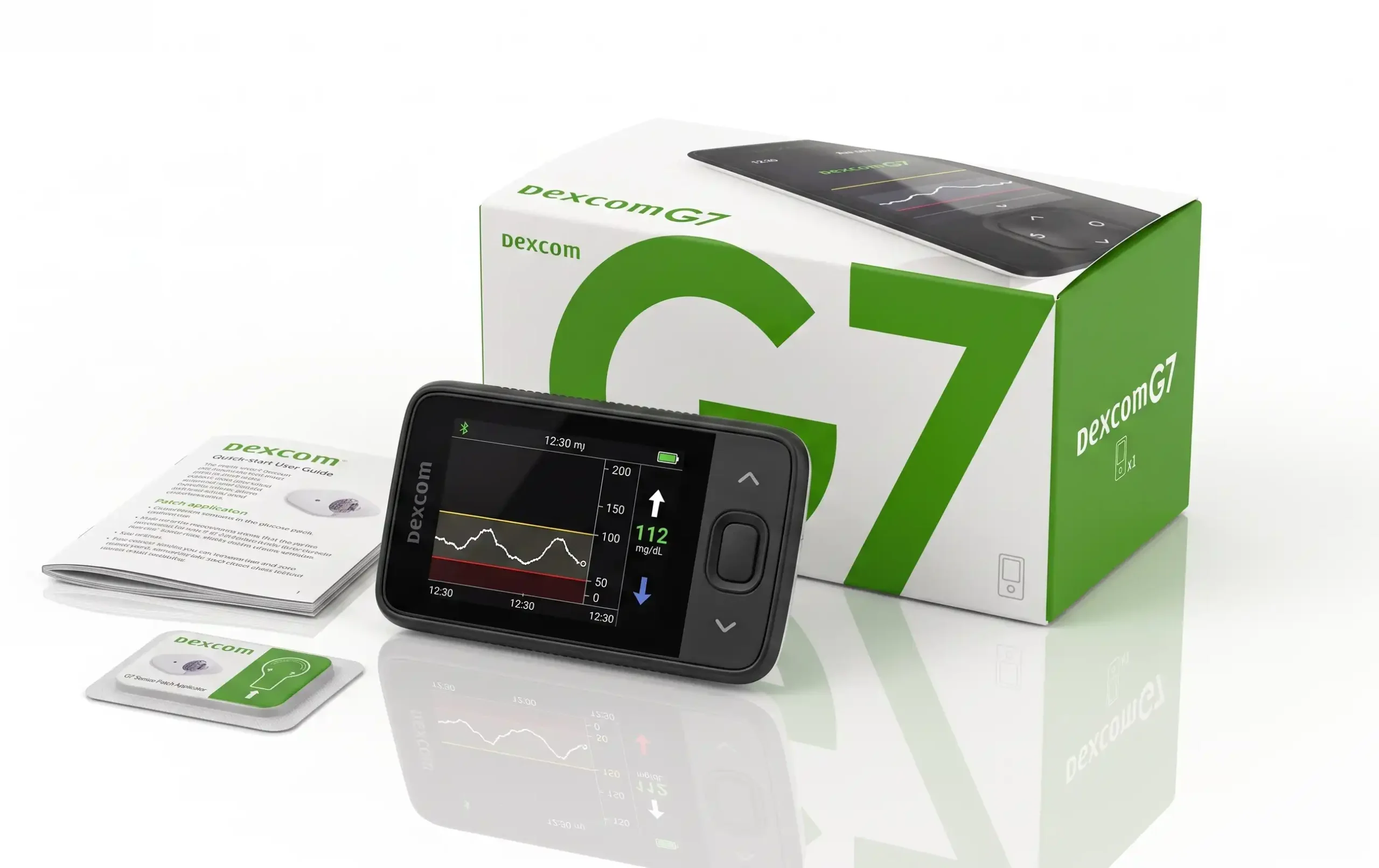
The Dexcom G7 receiver is an essential component of the Dexcom G7 system. But what is the Dexcom G7 receiver? Simply put, it is a small handheld device that receives glucose data from the Dexcom G7 sensor and displays that information in real-time. It offers an alternative to using a compatible smartphone for viewing glucose readings.
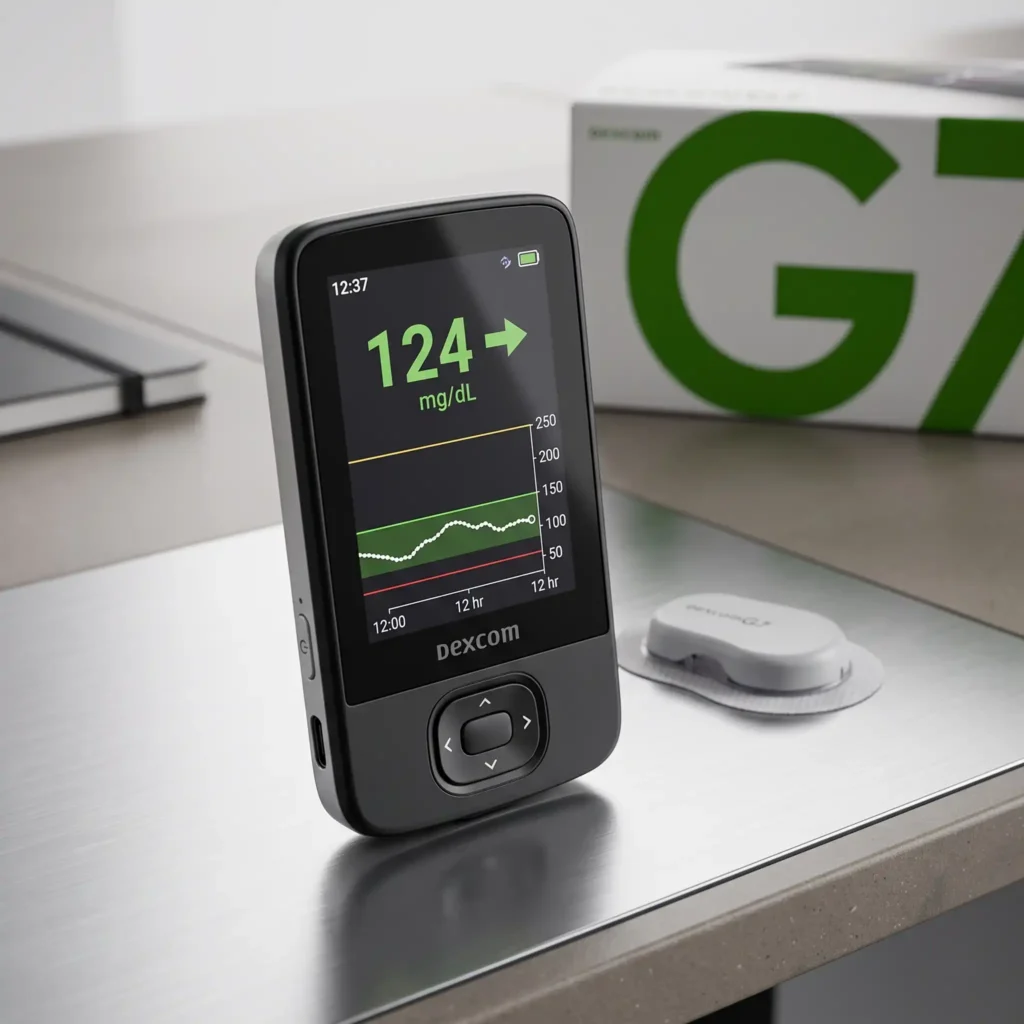
For those who do not wish to rely on a smartphone, or who simply want a dedicated device for glucose monitoring, a receiver can be a useful option.
Alfa Healthcare Supply Inc. provides healthcare and durable medical equipment solutions to patients and their caregivers who require reliable medical supplies. Understanding how products like the Dexcom G7 receiver work can help you have more informed conversations with your healthcare professional.
What Is a Dexcom G7 Receiver?
The Dexcom G7 receiver is a small, dedicated handheld device that displays glucose data from the Dexcom G7 Continuous Glucose Monitoring (CGM) sensor. Instead of relying on a smartphone, users can utilize the receiver to view their current glucose levels, trend arrows, glucose history, and personalized alerts.
This receiver serves as the display component of the Dexcom G7 system. The wearable G7 sensor collects glucose data and wirelessly transmits it to the receiver, allowing users to monitor their glucose levels throughout the day. Dexcom states that users can choose to use the receiver alone, the compatible Dexcom G7 app alone, or both simultaneously.
A major advantage of the receiver is its convenience. For those who prefer not to rely on a smartphone for glucose monitoring, having a dedicated medical device can make checking glucose data easier and more reliable.
The Dexcom G7 receiver is rechargeable, and the receiver kit includes a USB cable and a power adapter.
How Does the Dexcom G7 Receiver Work?
The basic process is simple:
- The Dexcom G7 sensor is applied according to the manufacturer’s instructions.
- The sensor measures glucose information.
- The sensor communicates wirelessly with the receiver.
- The receiver displays current glucose readings and trends.
- Alerts can notify the user about certain high or low glucose conditions.
Dexcom says the G7 sensor can complete its warm-up within approximately 30 minutes, after which glucose readings and alerts become available.
What Can You See on the Receiver?
Depending on the system and settings, the receiver can provide information such as:
- Current glucose readings
- Trend arrows showing where glucose is heading
- Trend graphs showing recent glucose patterns
- High and low glucose alerts
- Other CGM notifications and information
This combination can provide more context than looking at a single glucose number because users can see both their current level and the direction in which glucose is moving.
Is a Smartphone Required?
No. If you choose to use the Dexcom G7 receiver specifically, a compatible smartphone is not required. Dexcom offers the option to use only the receiver.
This can be particularly helpful for people who prefer keeping their glucose monitoring separate from their everyday phone.
Why Choose a Dexcom G7 Receiver?
A dedicated receiver may be a good option for someone who:
- Prefers a separate device for diabetes monitoring
- Does not regularly use a smartphone
- Wants an easy-to-access glucose display
- Wants an alternative to the Dexcom G7 smartphone app
- Wants to use the receiver and compatible app together
For patients considering a Dexcom G7 Receiver, Alfa Healthcare Supply Inc. can be a resource for learning about diabetes supplies and durable medical equipment.
Important: The Dexcom G7 Receiver is a monitoring device and should be used according to the manufacturer’s instructions. If CGM readings do not match your symptoms or expectations, follow Dexcom’s safety guidance and consult your healthcare professional regarding treatment decisions.
How Does the Dexcom G7 Receiver Work?
The Dexcom G7 receiver serves as a dedicated display device for the Dexcom G7 Continuous Glucose Monitoring (CGM) system. The wearable G7 sensor collects glucose data and wirelessly transmits it to the receiver, where users can view their current glucose readings, trend directions, graphs, and alerts. Dexcom states that the G7 can automatically send glucose data in real-time to a compatible smart device or the Dexcom receiver.
For those who do not wish to rely on a smartphone, the receiver offers a convenient way to monitor glucose data throughout the day.
1. The G7 Sensor Collects Glucose Information
The process begins with the Dexcom G7 sensor. The sensor is worn on the body and continuously collects glucose data from the interstitial fluid beneath the skin.
The sensor then wirelessly transmits this information to a selected display device. The receiver itself does not measure glucose—the sensor is responsible for collecting the glucose data, while the receiver displays it.
2. The Sensor Sends Information to the Receiver
Once the sensor and receiver are paired, glucose information is automatically transmitted to the receiver.
During setup, the user enters the sensor’s four-digit pairing code into the receiver. Following Dexcom’s setup instructions, the receiver guides the user through the pairing process and then initiates the sensor warm-up period. The G7 can complete its warm-up in approximately 30 minutes.
After the warm-up is complete, glucose readings and essential alerts begin to appear.
3. The Receiver Displays Your Glucose Reading
The receiver displays glucose information in an easy-to-view format. Users can see their current glucose level, helping them understand where their levels stand at that moment.
However, the receiver shows more than just a number; it also displays trend arrows that indicate the direction in which glucose levels are changing. This provides valuable insight when viewing the current reading.
4. Trend Graphs Show Glucose Patterns
The Dexcom G7 system also provides information via graphs, allowing users to view changes in glucose levels over time.
According to Dexcom, trend graphs can display glucose data over periods such as 3, 6, 12, and 24 hours. By observing these patterns, users and their healthcare professionals can better understand fluctuations caused by factors like food, physical activity, medication, and other influences.
This is one of the benefits of CGM technology: instead of looking at just a single glucose reading, users can see how their glucose levels are changing.
5. The Receiver Provides Glucose Alerts
Alerts are another essential part of how the Dexcom G7 receiver functions.
Depending on user settings, the system can provide alerts for high or low glucose levels. Dexcom also features an ‘Urgent Low Soon’ alert, which warns the user when their glucose level is projected to drop to a dangerously low level within approximately 20 minutes.
Users can customize certain alert settings based on their needs and healthcare advice.
6. The Receiver Does Not Require a Smartphone
One of the most useful features of the Dexcom G7 receiver is that it offers a distinct alternative to the smartphone app.
Dexcom states that the G7 system can use a compatible smartphone app or an optional receiver as the display device.
This can be helpful for someone who:
- Prefers a dedicated medical device
- Does not want to rely on a smartphone
- Wants a separate screen for glucose monitoring
- Finds a handheld receiver more convenient
- Wants to use the receiver alongside a compatible smart device
7. The Receiver Is Rechargeable
The Dexcom G7 receiver is rechargeable, and the kit includes a USB cable and a power adapter.
Keeping the receiver charged is essential for daily CGM management, especially for those who use it as their primary display.
8. What Happens When the Sensor Is Paired?
Once pairing and warm-up are complete, the receiver begins displaying glucose information from the sensor.
The basic communication process looks like this:
G7 Sensor → Wireless Communication → Dexcom G7 Receiver → Glucose Readings, Trends & Alerts
This makes the receiver the viewing point between the wearable sensor and the person using the CGM system.
Why Is the Dexcom G7 Receiver Helpful?
For many people, glucose management is already a daily responsibility. Having information available without repeatedly performing traditional checks can make monitoring feel more convenient.
The receiver can help users see:
- Current glucose information
- Whether glucose is rising or falling
- Recent glucose trends
- High and low alerts
- Other information provided by the G7 system
Dexcom describes G7 as providing real-time glucose visibility and customizable alerts designed to help users understand their glucose patterns and spend more time in their target range.
Important Safety Consideration
The Dexcom G7 Receiver is a monitoring tool and should be used according to the manufacturer’s instructions. Dexcom notes that fingerstick testing may be required for diabetes treatment decisions when symptoms or expectations do not match CGM readings.
If you are unsure how to interpret a reading or alert, speak with your physician, diabetes educator, or other qualified healthcare professional.
Why Use a Dexcom G7 Receiver Instead of a Smartphone?
Users of the Dexcom G7 Continuous Glucose Monitoring (CGM) system can view their glucose information in two main ways: via the compatible Dexcom G7 smartphone app or through the dedicated Dexcom G7 receiver. Dexcom states that users can choose the app, the receiver, or both, depending on their needs and compatible devices.
While a smartphone can be convenient, a dedicated receiver can make glucose monitoring even easier. It provides users with a separate device designed specifically to display their CGM data, so they do not have to mix diabetes management with their everyday phone activities.
1. A Dedicated Device for Glucose Monitoring
A major reason to choose the Dexcom G7 receiver is that it is a device designed specifically for medical use.
Your smartphone is used for calls, messages, social media, work, entertainment, banking, and many other tasks. The receiver has only one primary function: displaying information from your Dexcom G7 system.
This can be a significant advantage for those who wish to keep diabetes management separate from their personal phone.
2. You Don’t Have to Depend on a Smartphone
The Dexcom G7 receiver allows users to view their glucose information without a compatible smartphone. Dexcom considers this receiver an optional display device and confirms that the G7 can be used with the receiver alone.
This may be helpful for people who:
- Do not regularly use smartphones
- Prefer a dedicated medical device
- Have concerns about smartphone compatibility
- Want to keep medical information separate from personal phone use
- Feel more comfortable with a simple, purpose-built device
3. It Keeps Glucose Monitoring Separate From Everyday Phone Use
Smartphones can be distracting. A glucose receiver, on the other hand, is designed specifically for monitoring.
When you pick up the receiver, you are checking your glucose information—not replying to a message or switching to another app.
For some people, this separation can make their daily routine feel more organized and less overwhelming.
4. The Receiver Is Designed Specifically for the Dexcom G7
The current G7 receiver has been redesigned specifically for the G7 system. Dexcom states that it is smaller than the previous G6 receiver and features a clearer, easier-to-read display.
This specific design can be very useful for those who want a simple interface to view glucose readings, trend information, and alerts.
5. It Provides Glucose Readings and Alerts
The receiver can display glucose readings and trend information from the G7 sensor. The system also provides customizable alerts for specific glucose conditions.
The Dexcom G7 system is designed to provide glucose information approximately every five minutes, depending on the system and configuration being used.
Having these readings on a dedicated device means users do not need to unlock their phones every time they want to check their glucose levels.
6. It Can Be Helpful for People Who Prefer Simplicity
Not everyone likes managing medical technology via a smartphone.
Some users—especially those uncomfortable with mobile apps—might find a dedicated receiver easier to understand. This device has fewer extraneous functions, allowing for a more focused learning process.
This can be particularly reassuring for someone new to CGM technology who is already learning about glucose trends, alerts, sensors, and diabetes management.
7. You Can Use the Receiver and Smartphone App Together
Choosing a receiver does not mean you have to stop using the smartphone app.
Dexcom states that users can use both the receiver and the compatible smartphone app simultaneously.
This offers convenience; for instance, a person might prefer using the receiver as their primary display while also utilizing the smartphone app for features within the Dexcom ecosystem.
However, when both display devices are used, Dexcom’s instructions require users to acknowledge alerts on both devices.
8. A Receiver Can Be Useful When Smartphone Compatibility Is a Concern
Not every smartphone works with every medical app. Dexcom maintains a list of smart devices that are compatible with it.
If a user does not have a compatible phone, a dedicated G7 receiver offers an alternative display option.
It is important to check current compatibility requirements before selecting a monitoring setup, as supported devices and software requirements may change.
Dexcom G7 Receiver vs. Smartphone: Which Is Better?
There isn’t one universal answer.
| Feature | Dexcom G7 Receiver | Smartphone App |
| Dedicated glucose display | Yes | No |
| Requires a smartphone | No | Yes |
| Displays CGM information | Yes | Yes |
| Provides glucose alerts | Yes | Yes |
| Convenient for people who prefer a separate device | Yes | Not necessarily |
| Smartphone features and integrations | Limited compared with phone ecosystem | More extensive |
| Can be used alongside the other option | Yes | Yes |
For those who prefer app-based monitoring and want to use connected features, a smartphone might be a better option. On the other hand, for those who want a dedicated and simple monitoring device, a receiver might be better.
When Might a Dexcom G7 Receiver Be the Better Choice?
A receiver may be worth considering if you:
- Prefer not to use your personal smartphone for medical monitoring
- Want a dedicated glucose-monitoring device
- Don’t have a compatible smartphone
- Prefer a simpler medical interface
- Want a separate device that can be kept with your diabetes supplies
- Feel more comfortable using a purpose-built receiver
For some people, that small amount of separation can make everyday diabetes management feel more manageable.
One Important Compatibility Consideration
If you are switching from the Dexcom G6 to the G7, do not assume that your old receiver will work with the new system. Dexcom states that G6 sensors, transmitters, and receivers are not compatible with the G7 system.
The G7 uses its own newly designed receiver.
Additionally, some connected systems have specific requirements. For example, Dexcom states that the Omnipod 5 system requires the Dexcom G7 mobile app rather than the G7 receiver.
Therefore, always check for compatibility based on the specific system you are using.
Choosing the Right Option for Your Routine
Ultimately, the best display device is one that fits seamlessly into your daily life and healthcare plan.
If you already carry a compatible smartphone and enjoy using apps, the Dexcom G7 app might be convenient. If you prefer to keep your glucose monitoring separate, the Dexcom G7 receiver can offer a more focused experience.
And for some users, having both options can provide greater flexibility.
Alfa Healthcare Supply Inc. helps patients and caregivers find healthcare solutions and durable medical equipment, including diabetes-related supplies. When considering the Dexcom G7 receiver, be sure to check product availability, compatibility, and coverage requirements before purchasing.
What Information Does the Dexcom G7 Receiver Display?
The Dexcom G7 receiver is designed to make it easy to view continuous glucose information throughout the day. It wirelessly receives data from the Dexcom G7 sensor and displays much more than just a single glucose number. Users can view their current glucose reading, trend direction, graphs, alerts, and other information, helping them understand changes in their glucose levels.
For someone managing diabetes, having this information available in one place can make daily monitoring more organized and less stressful.
1. Current Glucose Reading
The most important information displayed on the Dexcom G7 receiver is the current glucose reading.
Instead of relying on only occasional checks, the G7 CGM system provides continuous glucose information from a wearable sensor. The receiver displays the latest reading so users can view their glucose levels at a glance.
This can help in understanding what is happening between traditional blood glucose checks.
2. Glucose Trend Arrows
The receiver also displays trend arrows.
The glucose number tells you your current glucose level, while the trend arrow indicates the direction in which it is moving. Based on the arrow shown, the glucose status could be:
- Rising
- Falling
- Rising or falling more gradually
- Changing more rapidly
Trend information can provide valuable context when looking at a current glucose reading. However, users should follow their healthcare professional’s guidance regarding how to respond to glucose trends.
3. Glucose Trend Graphs
The Dexcom G7 receiver displays information via graphs, allowing users to view glucose patterns over time.
Instead of looking at just a single reading, users can view recent glucose data and understand fluctuations throughout the day. Dexcom displays trend views for time intervals such as 3, 6, 12, and 24 hours.
These graphs can be useful when discussing glucose patterns with healthcare professionals.
4. High and Low Glucose Alerts
Another key feature of the receiver is its ability to provide glucose-related alerts.
Based on individual user settings, the receiver can alert users when glucose levels reach pre-set high or low thresholds.
These notifications can help users identify glucose levels that may require attention.
5. Urgent Low Soon Alert
The Dexcom G7 system also includes an ‘Urgent Low Soon’ feature.
Dexcom states that this alert can notify users when the system predicts that glucose levels could reach 55 mg/dL in approximately 20 minutes.
This predictive information can warn the individual before glucose levels drop to dangerously low levels.
6. Sensor and System Information
The receiver can also display information related to the CGM system itself.
Depending on the situation, users may see notifications involving:
- Sensor status
- Sensor warm-up
- Sensor replacement
- Connection or communication status
- Alerts requiring attention
- Other system notifications
These messages can help users understand whether their CGM system is operating normally or whether they need to take action.
7. Events and Additional Information
Dexcom states that the receiver can be used to track specific events, such as insulin doses, meals, and blood glucose meter readings.
Keeping a record of these events can provide additional insight when reviewing glucose patterns.
For example, a user can view glucose data alongside information about meals or insulin doses. This information can be very useful when discussing patterns with the diabetes care team.
8. Glucose History
The receiver provides access to historical glucose data, allowing users to view information beyond their current readings.
Reviewing past readings can help identify patterns that emerge at different times of the day. Over time, these patterns can help patients and healthcare professionals understand how factors such as food, physical activity, medication, and daily routines relate to changes in glucose levels.
9. Alert Settings
The Dexcom G7 receiver also provides information based on the alert settings configured by the user.
Certain alert settings can be adjusted to suit individual needs. Dexcom recommends consulting a healthcare professional regarding appropriate glucose alert settings if necessary.
Customizing alerts allows users to receive notifications relevant to their diabetes management plan without unnecessary interruptions.
What Does the Main Receiver Screen Show?
The main display is designed to give users a quick overview of their glucose information.
At a glance, users can generally identify:
Current glucose reading → Trend direction → Recent glucose pattern → Active alerts or notifications
This is useful when someone wants to quickly check their glucose without navigating through multiple menus.
Why Is This Information Useful?
The value of the Dexcom G7 Receiver is that it brings several pieces of glucose information together.
A single glucose number provides only a snapshot. Combining the current reading, trend arrow, historical graph, and alerts gives users a broader understanding of what may be happening with their glucose.
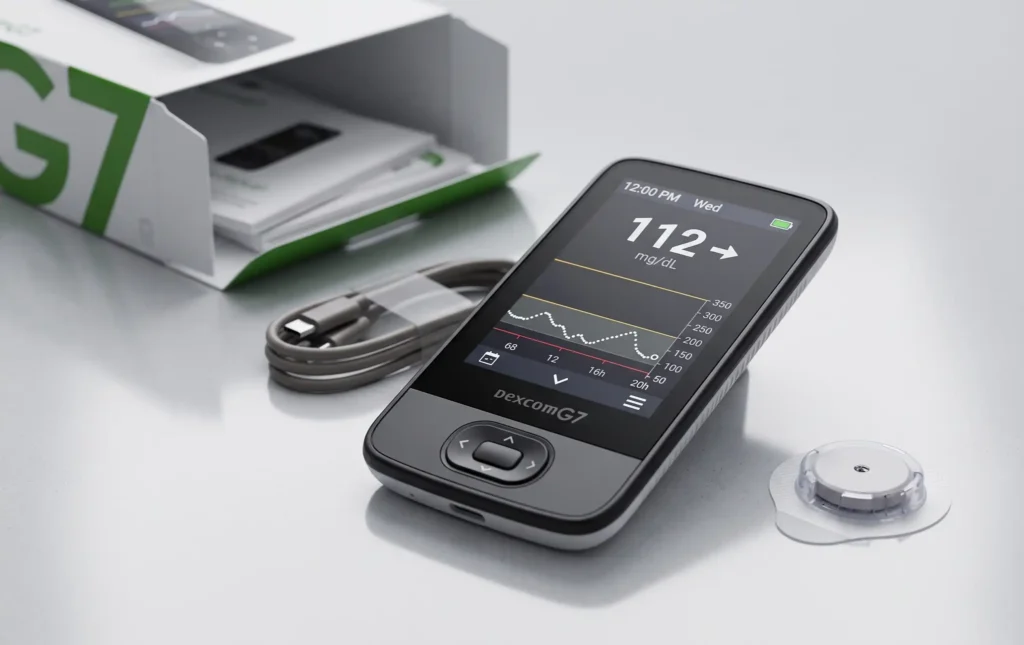
For example, someone might see a glucose reading that appears acceptable at first glance but notice that the trend arrow indicates glucose is changing quickly. That additional context can be important when following an individualized diabetes management plan.
However, CGM information should always be interpreted according to the instructions provided by Dexcom and the recommendations of the user’s healthcare professional.
Can the Receiver Replace All Fingerstick Testing?
Not necessarily.
Dexcom explains that users may sometimes need to use a blood glucose meter when CGM readings do not match their symptoms or expectations, particularly when making treatment decisions.
Users should follow the manufacturer’s current instructions and their healthcare professional’s recommendations regarding fingerstick testing.
A Simple Way to Understand the Dexcom G7 Receiver
You can think of the receiver as a dashboard for your CGM system.
The sensor gathers glucose information, and the receiver organizes that information into useful displays:
Sensor → Glucose information → Receiver → Reading + Trend + Graph + Alerts
This approach can make continuous glucose monitoring easier to understand, particularly for people who prefer having a dedicated device rather than relying on a smartphone.
Does the Dexcom G7 Receiver Require a Smartphone?
No.
A smartphone is not necessarily required to view Dexcom G7 readings if you are using the dedicated receiver. Dexcom states that users have the option of using only the receiver, only the compatible smartphone app, or both.
This is particularly useful for people who want a dedicated device for glucose monitoring.
It is important, however, to follow Dexcom’s compatibility and setup instructions and to discuss your preferred monitoring method with your healthcare professional when appropriate.
How Do You Set Up the Dexcom G7 Receiver?
Setting up the Dexcom G7 Receiver is designed to be a guided process. The receiver walks users through the initial setup, sensor pairing, and warm-up process so they can begin viewing glucose readings and receiving alerts.
If you’re new to continuous glucose monitoring, the first setup may seem like a lot of information. However, taking it one step at a time can make the process much easier. Always follow the current Dexcom instructions supplied with your specific G7 system.
Step 1: Charge and Turn On the Receiver
Before starting, make sure the receiver has sufficient battery power. The Dexcom G7 Receiver kit includes the receiver, USB cable, and power adapter.
To turn on the receiver, press and hold the Select button for about 3 seconds. The receiver will then guide you through the initial setup.
Step 2: Accept the Terms and Set the Date and Time
When the receiver starts for the first time, it will ask you to review and accept the applicable terms of use and privacy policy.
You will also be prompted to set the date and time. Make sure these settings are correct because accurate time information can help keep your glucose records organized.
Step 3: Review the Receiver Tutorial
The Dexcom G7 Receiver includes educational screens that explain important parts of the system.
The built-in tutorial covers topics such as:
- Glucose readings
- Trend arrows
- Alerts
- Treatment decisions
- The receiver’s home screen
- Basic safety information
Taking time to review these screens can be especially helpful if you are using a CGM system for the first time.
Step 4: Insert the Dexcom G7 Sensor
The sensor needs to be inserted before it can communicate with the receiver.
Dexcom’s current instructions specify approved sensor placement according to the user’s age and applicable product labeling. Before insertion, wash and dry your hands and prepare the selected site as instructed by Dexcom.
For the standard G7 system, Dexcom’s U.S. instructions currently identify the back of the upper arm as the sensor site for people age 7 and older. Different age groups and product versions may have different approved locations, so follow the instructions included with your specific sensor.
Step 5: Confirm That the Sensor Has Been Inserted
After inserting the sensor, the receiver will ask you to confirm that the sensor has been applied.
Follow the prompts on the receiver rather than skipping the setup instructions. This helps ensure the receiver knows which sensor you are beginning to use.
Step 6: Enter the Four-Digit Pairing Code
This is an important part of the setup.
Each Dexcom G7 applicator has a four-digit pairing code. You will need to enter this code into the receiver when prompted.
It is important to use the pairing code from the sensor you are currently inserting. Dexcom explains that G7 sensors are factory calibrated, so a separate calibration code is not required, but the four-digit pairing code is still required to pair the sensor with the receiver.
Step 7: Wait for the Sensor to Pair
After entering the correct pairing code, the receiver will attempt to connect with the sensor.
Dexcom recommends keeping the receiver close to the sensor during pairing. If pairing problems occur, Dexcom advises keeping the receiver within approximately 3 feet of the sensor and removing obstacles such as walls, water, or your body between the devices. Pairing can take up to about 10 minutes.
Step 8: Allow the Sensor to Warm Up
Once pairing is complete, the receiver will enter the sensor warm-up period.
The receiver displays a timer indicating when glucose readings and alerts are expected to become available. Dexcom currently states that the G7 warm-up can take up to approximately 30 minutes.
During this period, keep the receiver close enough to the sensor for reliable communication.
Step 9: Start Viewing Glucose Information
After warm-up is finished, the receiver begins displaying glucose information from the sensor.
Depending on your system and settings, you can view:
- Current glucose readings
- Trend arrows
- Glucose graphs
- High and low alerts
- Other CGM notifications
This is where the receiver becomes a useful everyday part of your glucose-monitoring routine.
Step 10: Customize Your Alerts
After setup, you can review and customize applicable alert settings.
Dexcom’s receiver instructions indicate that alert settings can be accessed through Menu → Settings → Alerts.
Your healthcare professional can help you determine appropriate alert settings for your individual diabetes management plan.
What If the Dexcom G7 Receiver Will Not Pair?
If the receiver does not pair with the sensor, don’t immediately assume that the sensor is defective.
First, check that:
- You entered the correct four-digit pairing code.
- The receiver is close to the sensor.
- There are no unnecessary obstacles between the receiver and sensor.
- The receiver is powered on.
- You followed the current Dexcom pairing instructions.
Dexcom recommends keeping the receiver within 3 feet of the sensor when troubleshooting pairing and notes that pairing can take up to 10 minutes.
If the problem continues, use Dexcom’s official technical support resources or the current user guide rather than repeatedly attempting procedures that are not included in the manufacturer’s instructions.
Should You Keep the Receiver Close to the Sensor?
Yes, particularly during initial pairing and warm-up.
Dexcom specifically recommends keeping the phone or receiver within the appropriate communication range during pairing and warm-up. For pairing problems, Dexcom recommends keeping the receiver within 3 feet of the sensor.
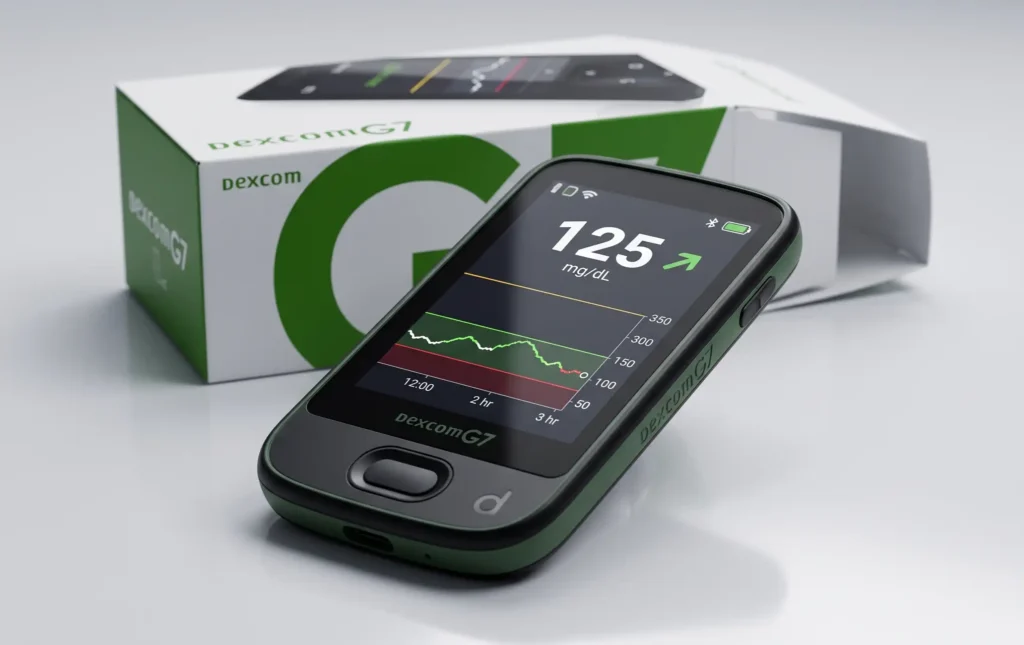
Maintaining a good connection helps the receiver receive glucose information and alerts from the sensor.
Can You Use the Dexcom G7 App Instead?
The Dexcom G7 system can also be used with a compatible smartphone app. Depending on the user’s setup, the receiver, compatible smartphone app, or both may be used as display devices.
If you plan to use a smartphone, check Dexcom’s current compatibility list because supported devices and operating-system requirements can change.
Keep Your Dexcom G7 Receiver Updated
Software updates may be important for maintaining receiver performance and supporting newer features or compatible G7 products.
Dexcom currently provides instructions for updating the G7 Receiver through Dexcom Clarity. The general process involves connecting the receiver to a computer with the USB cable, uploading information, and installing an available receiver update when prompted.
For the newer Dexcom G7 15 Day system, Dexcom states that the same G7 receiver can be used after the receiver software has been updated as required.
A Simple Dexcom G7 Receiver Setup Checklist
Before you begin, make sure you have:
- The Dexcom G7 Receiver
- A charged receiver or access to its charging equipment
- A new Dexcom G7 sensor and applicator
- The four-digit pairing code on the applicator
- A suitable sensor site
- The current Dexcom instructions for your specific system
Then follow this basic sequence:
Turn on receiver → Complete initial setup → Insert sensor → Confirm insertion → Enter pairing code → Pair sensor → Complete warm-up → Check readings and alerts
What Comes With a Dexcom G7 Receiver?
The exact package contents can vary depending on the product package and market.
Dexcom’s setup information identifies the receiver, USB cable, and power adapter as components of the receiver package.
The sensor itself is a separate component of the Dexcom G7 CGM system.
If you are purchasing or receiving a receiver, check the packaging and product documentation to confirm what is included.
How Long Does the Dexcom G7 Receiver Battery Last?
The Dexcom G7 Receiver battery can last for up to seven days on a single charge, according to Dexcom’s current product information. The receiver is rechargeable and is designed to provide a dedicated way to view glucose readings, trends, and alerts from the Dexcom G7 Continuous Glucose Monitoring (CGM) System.
For someone who depends on the receiver throughout the day, having a battery that can potentially last for several days can make glucose monitoring more convenient. However, actual battery performance can vary depending on how the receiver is used and other factors.
Is the Dexcom G7 Receiver Rechargeable?
Yes. The Dexcom G7 Receiver is rechargeable. Dexcom’s receiver documentation states that it can be recharged using the supplied USB cable.
Keeping the receiver adequately charged is important if it is your primary display device for your CGM system. A low or depleted battery can prevent you from viewing glucose information and receiving receiver-based alerts.
How Often Should You Charge the Dexcom G7 Receiver?
Because Dexcom states that the battery can last up to seven days on a single charge, some users may only need to recharge it approximately once a week under typical conditions.
However, “up to seven days” is not a guarantee that every receiver will provide exactly seven days of battery life. Battery duration can be affected by usage patterns and other operating conditions.
A practical approach is to:
- Check the battery level regularly.
- Recharge the receiver before it becomes critically low.
- Keep the charging cable available when traveling.
- Avoid waiting until the battery is completely depleted.
- Follow Dexcom’s current charging instructions.
Does Using the Receiver More Often Drain the Battery Faster?
Battery performance can vary depending on how the device is used. Frequent interaction with the screen, alerts, and other receiver functions can contribute to battery consumption.
Because the receiver continuously communicates with the Dexcom G7 sensor during an active session, it is best to treat battery management as part of your normal CGM routine.
If you use the receiver as your primary display, charging it regularly can provide greater peace of mind.
How Long Does the Dexcom G7 Sensor Battery Last?
It’s important to distinguish between the receiver battery and the sensor’s wear period.
The standard Dexcom G7 sensor is designed for up to 10 days plus a 12-hour grace period, while the newer Dexcom G7 15 Day system is designed for up to 15.5 days. These are sensor wear periods—not receiver battery-life specifications.
The receiver itself is rechargeable and can continue to be used with compatible G7 sensors.
What Happens If the Receiver Battery Runs Out?
If the receiver’s battery becomes depleted, the receiver will no longer be able to display glucose information or provide receiver-based alerts until it has sufficient power.
Dexcom also allows users to choose between the receiver and compatible smartphone app as display devices. Users can use the receiver alone, the compatible app alone, or both at the same time, subject to device and system requirements.
If the receiver is your only display device, keeping it charged is especially important.
Does Turning Off the Receiver Extend Sensor Life?
No. Turning off the receiver does not extend the life of the Dexcom G7 sensor.
Dexcom explains that using the receiver’s Power Off option temporarily stops communication between the sensor and receiver, but it does not extend the sensor’s wear period.
Therefore, turning the receiver off should not be viewed as a way to make the sensor last longer.
Tips for Maintaining Dexcom G7 Receiver Battery Life
Some simple habits can help you stay prepared:
Charge regularly:
Don’t wait until the battery is nearly empty before charging.
Carry the charging cable:
If you travel or spend long periods away from home, keeping the supplied cable with you can be helpful.
Monitor the battery indicator:
Make checking the battery level part of your normal CGM routine.
Keep your receiver accessible:
If it is your primary display, avoid leaving it somewhere you cannot easily access when an alert occurs.
Follow Dexcom’s instructions:
Use the manufacturer’s current guidance for charging, operation, and troubleshooting.
Dexcom G7 Receiver Battery vs. Sensor Wear Time
| Component | Typical Duration |
| Dexcom G7 Receiver battery | Up to 7 days per charge |
| Standard Dexcom G7 sensor | Up to 10 days + 12-hour grace period |
| Dexcom G7 15 Day sensor | Up to 15.5 days |
The receiver is rechargeable, while the sensor is a replaceable component of the CGM system. Dexcom states that both the standard G7 and G7 15 Day systems use the Dexcom G7 app and receiver.
Why Battery Life Matters
When you’re managing diabetes, small conveniences can make a real difference. A receiver that can operate for several days between charges means fewer interruptions to your daily routine.
For people who prefer a dedicated glucose-monitoring device instead of relying on a smartphone, the Dexcom G7 Receiver can provide a practical display option. Dexcom specifically describes the receiver as a small, lightweight device that can be used as an alternative to or alongside a compatible smartphone.
How Long Does a Dexcom G7 Sensor Last?
The receiver itself does not determine how long the sensor can be worn.
For the standard Dexcom G7 system, Dexcom currently states that the sensor lasts up to 10 days, with an additional 12-hour grace period for replacement.
Dexcom also now offers a Dexcom G7 15 Day CGM System in applicable markets. Dexcom states that the 15 Day system has a 15.5-day wear time and uses the same G7 receiver after the appropriate software update.
Because product availability and labeling can differ by market, always check the current product information applicable to you.
What Are the Benefits of a Dexcom G7 Receiver?
A receiver can offer several practical advantages.
1. Dedicated Glucose Display
Instead of opening a smartphone, users can keep a dedicated device available for glucose information.
2. Real-Time Information
The G7 system automatically sends glucose information to the receiver, helping users see current readings and trends.
3. Customizable Alerts
Alerts can help draw attention to glucose levels that require awareness or action.
4. Simple Handheld Design
Dexcom describes the redesigned G7 receiver as smaller than the previous G6 receiver and designed with a more vibrant, easier-to-read display.
5. Smartphone-Free Monitoring Option
For people who don’t want to rely on a smartphone, the receiver provides another way to view G7 information.
Can You Use a Dexcom G6 Receiver With Dexcom G7?
This is an important point for anyone upgrading from an older Dexcom system.
The Dexcom G6 touchscreen receiver is not compatible with the Dexcom G7 sensor. Dexcom says the G7 uses a redesigned receiver.
Because Dexcom has introduced different receiver hardware and software versions, it is important to verify compatibility before purchasing or attempting to use an older receiver.
If you already own a Dexcom receiver and are moving to G7, check the receiver model and current Dexcom compatibility information.
Can the Dexcom G7 Receiver Track Events?
Yes. Dexcom states that users can track certain events through the receiver, including insulin doses, food, and blood glucose meter values.
Recording relevant events can provide additional context when reviewing glucose patterns.
For example, looking at glucose information alongside meals or insulin doses may help users and their healthcare teams better understand patterns. Any treatment changes should be made according to guidance from a qualified healthcare professional.
Is the Dexcom G7 Receiver Easy to Use?
The answer depends on the individual, but Dexcom designed the receiver setup to guide users through the process.
The receiver includes buttons for selecting and navigating through the interface, and the initial setup provides educational screens covering topics such as alerts, trend arrows, treatment decisions, and the home screen.
For someone who is new to CGM technology, taking a little time to learn the interface can make everyday use much less intimidating.
It is perfectly normal to need some time to become comfortable with glucose trends and alerts. When in doubt, patients should consult their diabetes care team or use the manufacturer’s official support resources.
Who May Benefit From a Dexcom G7 Receiver?
The receiver may be useful for people using the Dexcom G7 CGM system who prefer a dedicated handheld display.
It can be particularly convenient for individuals who:
- Prefer not to use a smartphone for glucose monitoring
- Want a separate device for diabetes management
- Need an easy-to-access display for glucose information
- Want to use a receiver alongside a compatible smartphone
- Are beginning CGM and want a dedicated monitoring device
Dexcom states that the G7 CGM system is intended for people with diabetes, including type 1, type 2, or gestational diabetes, with applicable age and product indications.
Your healthcare professional can help determine whether a CGM system and receiver are appropriate for your individual needs.
Dexcom G7 Receiver vs. Smartphone App
The receiver and mobile app serve a similar fundamental purpose: displaying information generated by the G7 sensor.
| Feature | Dexcom G7 Receiver | Dexcom G7 App |
| Displays glucose readings | Yes | Yes |
| Shows trend information | Yes | Yes |
| Provides alerts | Yes | Yes |
| Requires a smartphone | No | Yes |
| Dedicated medical display | Yes | No |
| Can be used alongside the other option | Yes | Yes |
The best choice often comes down to personal preference, device compatibility, lifestyle, and healthcare needs.
Tips for Getting the Most From Your Dexcom G7 Receiver
A few simple habits can make everyday use easier:
Keep the receiver charged.
A dedicated device is only helpful when it has sufficient battery power.
Learn your alert settings.
Understand what your high, low, and other alerts mean before you need to respond to one.
Pay attention to trends, not just individual numbers.
A single reading provides information, while trends can provide additional context.
Follow the manufacturer’s instructions.
Use current Dexcom guides for sensor insertion, pairing, charging, troubleshooting, and replacement.
Keep your healthcare team involved.
CGM information can be valuable, but your healthcare professional can help interpret patterns and determine appropriate treatment decisions.
Don’t ignore symptoms.
If your symptoms do not match the CGM reading, follow Dexcom’s guidance regarding confirmation and treatment decisions.
Where Can You Learn More About Dexcom G7 Products?
When researching a CGM receiver, trustworthy information matters. Product specifications, compatibility, software, and instructions can change, so it is best to check the manufacturer’s current documentation.
Dexcom provides official G7 user guides, receiver setup instructions, videos, and technical support resources.
For patients and caregivers looking for medical equipment and healthcare supply resources, Alfa Healthcare Supply Inc. is another resource to consider when exploring diabetes and durable medical equipment needs.
Frequently Asked Questions About the Dexcom G7 Receiver
What is a Dexcom G7 receiver?
The Dexcom G7 Receiver is a dedicated handheld device that receives and displays glucose information from a Dexcom G7 CGM sensor. It can be used instead of, or alongside, the compatible Dexcom G7 smartphone app.
Does Dexcom G7 need a receiver?
Not necessarily. Dexcom G7 can be used with a compatible smartphone app, the dedicated receiver, or both, depending on the user’s setup and compatible devices.
Can I use my Dexcom G6 receiver with G7?
The older Dexcom G6 touchscreen receiver is not compatible with G7 sensors. Users should verify their receiver model and current compatibility information.
Does the Dexcom G7 receiver show alerts?
Yes. The receiver can provide glucose alerts, including high and low alerts, according to the system’s configured settings.
How long does the Dexcom G7 receiver battery last?
Dexcom currently states that the G7 receiver battery can last up to seven days on a single charge, although actual battery performance can vary.
How long does the standard Dexcom G7 sensor last?
The standard G7 sensor lasts up to 10 days, with a 12-hour grace period for replacement according to Dexcom’s current information.
Is a smartphone required for the Dexcom G7 receiver?
No. The dedicated receiver can be used without relying on the Dexcom G7 smartphone app.
Can the Dexcom G7 receiver record information?
Yes. Dexcom states that the receiver can track events such as insulin doses, food, and blood glucose meter values.